Print Document List Screen Layout
When Using the Smart Operation Panel
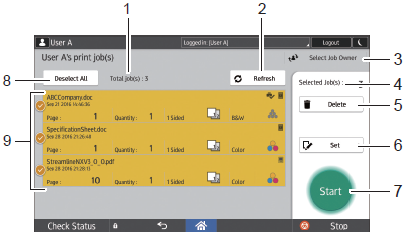
When [Secure Print] is selected on the workflow selection screen, the print document list screen is displayed.
- If an attempt to obtain the print document list fails, an error code and message are displayed. Record the error code, press [Exit], and contact the administrator. For details about the error codes, refer to Error Codes.
- The selection status when the print document list is first displayed depends on the administrator settings.
-
Total job(s):
This displays the total number of pages of the print documents belonging to the logged-in user.
-
[Refresh]
This refreshes the information on the print document list.
-
Select Job Owner
Pressing this displays the [Select Job Owner] screen. You can print job owner print documents as a delegate user.
This changes to [Login User] when the print document list of the owner is displayed. To return to the print document list of the logged-in user, press [Login User]. For details, refer to Print a Document as Delegate User.
-
Selected Job(s):
This displays the number of selected print documents.
-
[Delete]
This deletes the selected print document. This is available when two or more print documents are selected. For details about deleting a document, refer to Delete a Print Document.
-
[Set]
You can change the print document settings. This is available only when one or more print documents are selected.
For details about changing the print settings, refer to Change the Print Document Settings.
-
[Start]
This prints the selected print document. This is available when two or more print documents are selected. For details about printing, refer to Print a Secure Document from a Device.
-
[Select All]/[Deselect All]
Select or clear selection of all print documents. The name is not case-sensitive.
-
Print document list
This displays a list of up to 50 print documents belonging to the logged-in user. Swipe up or down to display other pages.
Press and select one or more print documents. The selected print documents are highlighted. Press again to cancel the selection.
When Using the Standard Operation Panel
When [Secure Print] is selected on the workflow selection screen, the print document list screen is displayed.
- If an attempt to obtain the print document list fails, an error code and message are displayed. Record the error code, press [Exit], and contact the administrator. For details about the error codes, refer to Error Codes.
- The selection status when the print document list is first displayed depends on the administrator settings.
- You cannot view Device Secure Print jobs in the print document list screen on the Standard Operation Panel.
Print document list screen on the Standard Operation Panel
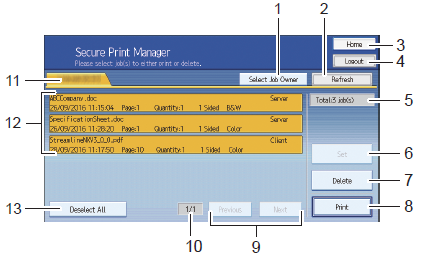
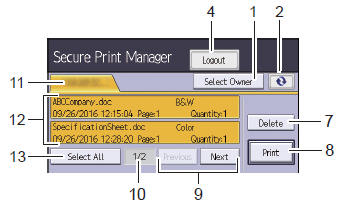
Print document list screen on an MFP or laser printer with a 4.3-inch screen
-
[Select Job Owner]
Pressing this displays the [Select Job Owner] screen. You can print job owner print documents as a delegate user.
This changes to [Login User] when the print document list of the owner is displayed. To return to the print document list of the logged-in user, press [Login User]. For details, refer to Print a Document as Delegate User.
-
[Refresh]
This refreshes the information on the print document list.
-
[Home]
This displays the workflow selection screen.
-
[Logout]
This logs you out from the device.
-
[Total job(s):]
This displays the total number of pages of the print documents belonging to the logged-in user. This is not displayed on MFPs with a 4.3-inch screen.
-
[Set]
You can change the print document settings. This is available only when one or more print documents are selected.
For details about changing the print settings, refer to Change the Print Document Settings.This is not displayed on MFPs with a 4.3-inch screen.
-
[Delete]
Deletes the selected print document. This is available when two or more print documents are selected. For details about deleting a document, refer to Delete a Print Document.
-
[Print]
Prints the selected print document. This is available when two or more print documents are selected. For details about printing, refer to Print Directly to a Device
-
[Previous]/[Next]
Use these buttons to move to the previous or next page.
-
Page number
Displays the number of the page currently displayed and the total number of pages. Up to 10 pages can be displayed.
-
Server name
Displays the display name of the SLNX server connected to the device.
-
Print document list
Displays a list of up to 50 print documents belonging to the logged-in user.
Press and select one or more print documents. The selected print documents are highlighted. Press again to cancel the selection.
- A confirmation message appears when there are 51 or more user print documents. Press [OK] to display only the first 50 documents sorted by administrator settings.
- The data storage information and print sides are not displayed on MFPs with a 4.3-inch screen.
- Depending on the type of characters being used, the print document name may not be correctly displayed.
- Depending on the application used to create the document, the print document information may not be correctly displayed.
- [External] is displayed for the print jobs stored on external print systems in the data storage information.
-
[Select All]/[Deselect All]
Select or clear selection of all print documents..
Notes
- A confirmation message appears when there are 51 or more user print documents. Press [OK] to display only the first 50 documents sorted by administrator settings.
- Depending on the type of characters being used, the print document name may not be correctly displayed.
- Depending on the application used to create the document, the print document information may not be correctly displayed.
-
 is displayed for the print jobs stored on external print systems in the data storage information.
 - Depending on the administrator settings, the "Estimated Cost" for each print job and total cost for the user are displayed. If the cost estimate fails, the individual job cost is not displayed and total cost is displayed as "0". In this case, contact your administrator.
- Encrypted jobs stored using E2EE Server Secure Print are displayed and can be selected only when you log in using a PKI smart card.
